Issue tracker
An Issue tracker is an important part of any code repository. It is the component where planning, execution and follow-up meet.
In GitLab each repository has an Issue tracker built in. It lives under GitLab's work items: a unified framework that also covers Tasks, Epics, Objectives/Key Results and Test Cases, so that they all share the same underlying features (comments, labels, assignees, linking, etc.). An Issue is simply the default, most commonly used work item type, and the one this page focuses on. The additional benefit of this tight integration is that you can link and interact with issues from other events. For example:
- You can link to the test job that uncovered a bug directly from the description of the Issue that is reporting this bug, making it easier for the programmer that will be fixing the bug to immediately have access to the relevant context.
- You can automatically close a reported issue when committing the fix using git by adding
Fixed #{id of the Issue}to your commit message (by default this only works on the main/master branch!). The Issue tracker will add a link to this commit for you, so you can easily track which part of the code was causing troubles and what the solution was.
It is a good practice to always create an Issue when finding a bug or when defining a feature request as this will add a lot of traceability to the development process. When working in a team, the comment section of an Issue is also the ideal place to discuss changes or possible approaches.
Creating an Issue
To create an Issue, go to the Plan > Work items tab on the left side of your project page (this section used to be called just "Issues"). If the page is not already pinned for quick-access, we advise you to do so now. When you click on New issue you will see the following form:
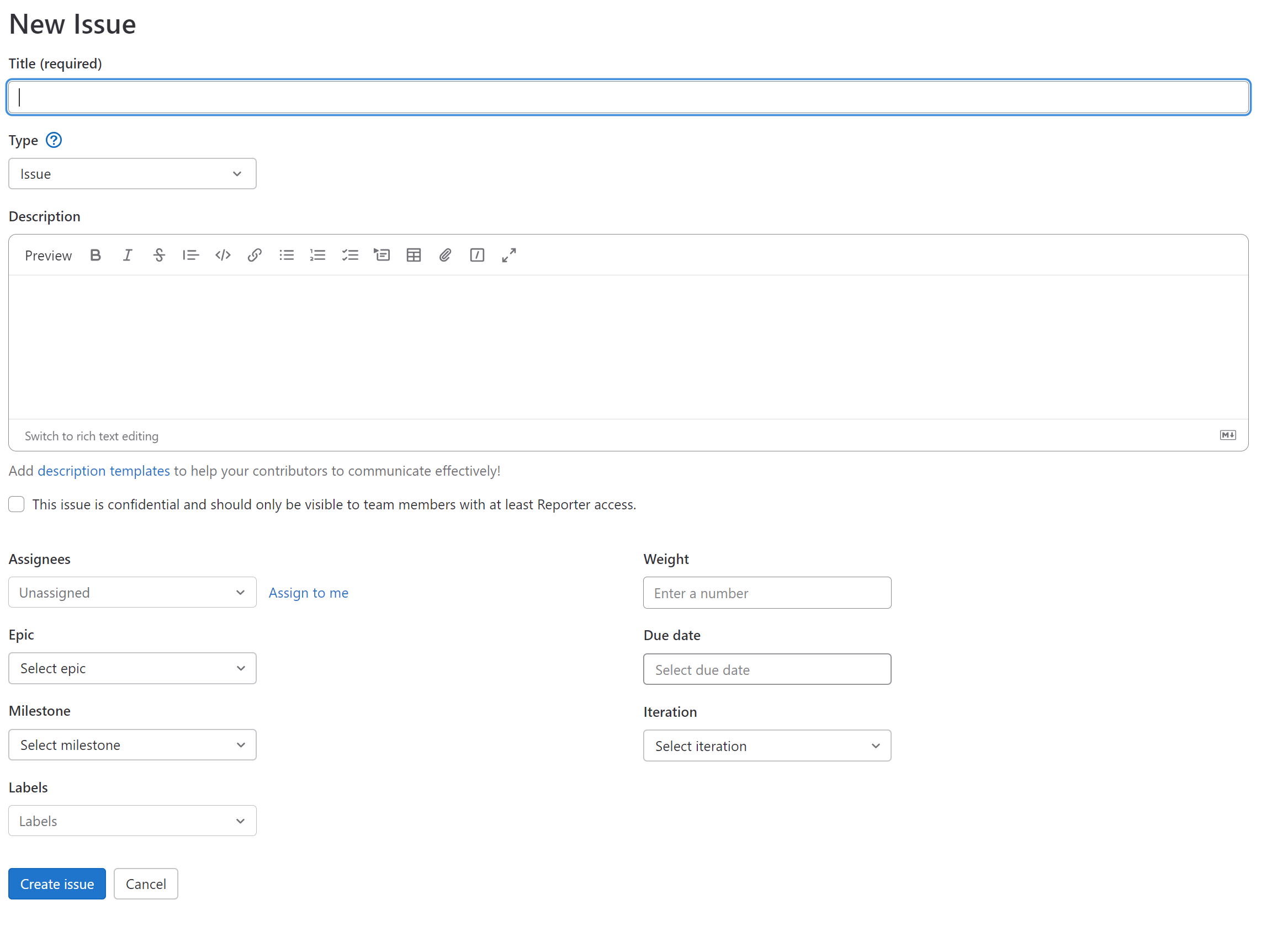
Note the Type field near the top: this is where the work item's type is chosen, and it defaults to Issue. Leave it as is unless you specifically need one of the other work item types (e.g. Task).
Enter a short descriptive title for the Issue. Some people prefer to prefix the title with an indicator of the type of issue, e.g. [BUG] or [FEATURE]. This can be handy, but know that you could also use the Label system instead (which is more flexible as you can easily add and remove multiple labels).
Use the Description to add relevant details to the Issue (e.g. steps to reproduce the issue, in case of a bug report). Use Markdown to format the description and make it easy to read. Markdown is a lightweight markup language with a plain-text-formatting syntax. An interactive tutorial explaining the basics can be found here. To be more specific, GitLab uses GitLab Flavored Markdown: a superset of Markdown. More info on its capabilities can be found here.
You can also switch to rich text editing by clicking the prompt in the bottom bar of the editor. This mode will change your Markdown into rich text immediately so you can check your syntax without manually clicking the preview button. You can switch between rich and plain text mode anytime.
An Issue can be assigned to one or multiple project members (this is especially useful when working in larger teams).
Finally, the Issue has some (optional) project management related attributes such as the Milestone it belongs to (helps with planning), the Weight (indication of the amount of effort required to resolve the Issue) and Due date.
Labels
Each issue can be assigned one or more labels (cfr. tags) which can be used to organise issues (e.g. you can click on a label to discover other issues in that category). Labels can be defined at a project level (by you as the project owner) or a group level. When clicking on the label selector (new Issue form), you will see that some labels have been preconfigured (the exact set differs from the screenshot below, see the tables underneath for the current one):
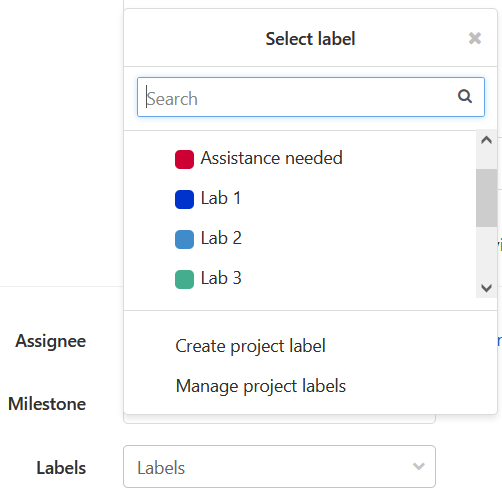
These labels were added to facilitate communicating with us using the Issue tracker: it helps us maintain an overview of which issues need our help and route them to whichever of us is best placed to help.
Assistance labels
assistance::requested and assistance::in-progress are scoped labels: note the double colon ::. GitLab treats labels sharing a scope (the part before the last ::) as mutually exclusive, so applying one automatically removes the other, which keeps the state accurate as we pick up your issue.
| Label | Purpose |
|---|---|
assistance::requested |
Add this to any issue where you need input from us. This is what we monitor to know you're waiting on a reply. |
assistance::in-progress |
We add this once we've picked up your issue and are actively looking into it. |
Area labels
Add one or more of these to indicate what your issue is about, so we can route it to whichever of us is best placed to help. Unlike the assistance labels above, these are not mutually exclusive (single colon, no scoping) — feel free to add more than one if your issue spans multiple areas.
| Label | Purpose |
|---|---|
🔀 Git |
Git workflow: branching, merge requests, conflicts, commit conventions |
⚙️ CI/CD |
GitLab CI/CD pipelines and job automation |
🐳 Docker |
Dockerfiles, image builds, Docker Compose |
🍃 Spring |
Spring Boot application code, REST endpoints, dependency injection, Maven |
🧪 Testing |
Unit/integration/API tests, TDD, coverage |
🎮 Game |
Questions about the game manual/mechanics: missions, resources, actions, colony management, API semantics |
Note
This isn't the full set of areas we'll end up using. As the assignment's scope broadens over the coming labs (Kubernetes, databases, messaging, observability, security, ...), we'll add matching area labels. Don't worry about picking the "perfect" one now — a reasonable guess is enough for us to route your issue.
Assistance needed? When to ask for help
Labeling an issue assistance::requested when encountering a problem should not be your first instinct, always try to resolve it yourself first:
- Read the assignment again, did you miss a critical step?
- Go through linked documentation.
- Do your own searching, there are millions of developers that have encountered similar issues as you have. Answers are out there.
Even if these extra steps don't resolve your issue, they will help you formulate your problem better.
Issue writing do's and dont's
Writing clear and concise issues is a very important skill, which mostly requires the author to put in a small amount of effort. When you write a good issue description and provide us with adequate information we can provide better answers. Below we will list some do's and dont's to keep in mind:
- Give your issue a descriptive title!
- Don't share screenshots of code, errors, logs, terminal sessions, job outputs, etc. unless you have no other option. Rather copy the relevant text into a code block with syntax highlighting and/or provide links to said content.
- Add syntax highlighting, by specifying a language next to the backticks before the fenced code block.
```javaas the start will highlight all contained code as java for example, most languages and syntaxes are supported, use the right one! - Using a code block allows anyone to copy-paste the text to either start a new internet search or open the source code of GitLab and involved components to look for the origin.
- When you think it is helpful to see the code block in its “natural” environment (e.g. a IDE, frontend, etc.), please attach both a code block and a screenshot.
- If you have a problem with a CI Job, provide links to relevant job runs, so we can quickly navigate them.
- Provide steps to reproduce erroneous behavior you have encountered and be specific! If you followed certain internet guides, provide links to them.
- Mind your spelling, grammar and formatting. Make use of titles, lists, indentation, etc. to structure your issue, so it is easy to read.
Tip
You can even link to your source code in an issue, if you post the URL of the file and append #L<linenumber>-<linenumber> (for example
https://gitlab.stud.atlantis.ugent.be/devops/model-lib/-/blob/main/src/main/java/idlab/colonyops/model/Mission.java#L16-23), it will open the code in GitLab and highlight the selected block.
When you view files on the Web version of GitLab, you can select lines by clicking on the line number the shift-clicking on another to select a range. The URL will change appropriately and you will be able to copy paste it into your issue.
A bad issue vs. a good issue
Every year we get issues that are just a screenshot and "this doesn't work". To make the do's and don'ts above concrete, here's the same underlying problem reported badly and reported well.
Bad: Help! App broken in k8s 😭
Issue Labels: help wanted
Description:
App doesn't start! It just keeps crashing...
@jveessen @wkerckho please help!
[Attached: A blurry photo of a terminal screen kubectl get pods output showing a pod in CrashLoopBackOff]
This tells us nothing: no idea what you ran, what you expected, or which part of the project is involved. We can't reproduce it from a picture, and by the time we've asked all the follow-up questions needed to actually help, you could have written the answer yourself.
Also directly asking for help from specific assistants only creates noise. Use only the assistance::requested label, and we will triage and pick it up if we can help. When an assistant is assigned to the issue or has responded, you can @ them in the comments to get their attention, but don't do it in the issue description.
Good: Maven build fails in IntelliJ with release version 25 not supported
Issue Labels: assistance::requested, ☸️ kubernetes, 🗄️ database
Description:
When moving from local development to the Kubernetes cluster, the Spring Boot application fails to start. The pod enters a CrashLoopBackOff state immediately after deployment.
The application is deployed in our staging namespace group-4-staging, and the database service is running in the same namespace. The Spring Boot application is configured to connect to the database service using the hostname postgres-service and port 5432.
Expected vs. Actual Behavior
- Expected: The Spring Boot pod connects to the database service and starts up successfully.
- Actual: The pod enters a CrashLoopBackOff state immediately after deployment.
Error Logs
  2026-09-22 14:10:05.123 ERROR [app-service] --- [main] o.s.boot.SpringApplication : Application run failed
  org.springframework.beans.factory.BeanCreationException: Error creating bean with name 'dataSource'
  Caused by: org.postgresql.util.PSQLException: Connection to postgres-service:5432 refused. Check that the hostname and port are correct.
What I've Already Tried
- Checked
kubectl get podsandkubectl get svc(both app-service and postgres-service are running). - Verified that
spring.datasource.url=jdbc:postgresql://postgres-service:5432/mydbis set correctly inapplication.yml. - Tried restarting the deployment, but the error persists.
This one we can act on immediately: we know exactly what was run, what broke, where in the code to start looking, and your own "what I've tried" already narrows down the fix.
Grading of issues
Your use of the issue tracker is also taken into account for your personal score. But don't be afraid to ask questions, we mainly want to see that you have put effort and thought into your issues and that you have at least tried to resolve the issue on your own with research and critical thinking!
Issues with lacking descriptions such as "Our code is broken" paired with a screenshot of a java exception stacktrace will not do. These type of issues typically also get ignored in open source projects, or actively closed when they do not follow guidelines.